Managing hiring across multiple interview rounds can quickly become chaotic when everything is handled manually. Candidates appear in multiple sheets, feedback gets overwritten, duplicates pile up, and tracking progress turns into a time-consuming task.
This is where recruitment automation makes a real difference. Google Sheets can be a powerful recruitment management tracker when combined with Google Apps Script automation.
In this blog, we walk step by step through how to build a smart recruitment workflow using Google Sheets and the finalSyncAndMerge function. We also show how you can connect your recruitment data to ChartApps to visualize and manage the hiring pipeline from any web browser.
Recruitment Automation Using Google Sheets and Apps Script
Recruitment automation does not require expensive ATS software. Google Sheets can act as a full applicant tracking system when paired with Apps Script logic.
Apps Script allows you to:
- Read and write data across sheets
- Apply conditions and validations
- Sync records without duplication
- Automate candidate movement between interview stages
At the center of this workflow is a custom function called finalSyncAndMerge().
What is finalSyncAndMerge()?
finalSyncAndMerge() is a custom Google Apps Script function typically used to synchronize and merge data between multiple Google Sheets.
The name implies two core actions:
- Sync: Keep data consistent across sheets
- Merge: Combine records without duplication
It is not a built-in Apps Script function; it is user-defined based on workflow needs.
Why finalSyncAndMerge Is Used?
This function is commonly used when:
- Data is split across multiple sheets
- Records need to move through stages or states
- Manual copying is inefficient or error-prone
- A single, updated record must be maintained
The function automates repetitive spreadsheet operations and ensures data consistency.
What the Function Typically Does
1. Accesses Multiple Sheets
The function retrieves references to one or more sheets within the same spreadsheet using Apps Script methods.
2. Identifies Existing Records
It checks whether a record already exists in the destination sheet by using a unique identifier such as:
- Name
- Email
- ID number
This prevents duplication.
3. Updates or Inserts Data
Based on the existence check:
- If record exists → updates the relevant row
- If record does not exist → inserts a new row
This is commonly referred to as an upsert operation.
The function may include conditions such as:
4. Applies Conditional Logic
- Status must be “Completed”
- Flag must be TRUE
- Required fields must be filled
Only qualifying records are synced or merged.
5. Preserves Data Integrity
Most implementations:
- Update only selected columns
- Avoid overwriting manual inputs
- Maintain consistent formatting
This allows the function to be run multiple times safely.
When This Function Is Useful?
- Multi-step workflows
- Status-based record movement
- Data consolidation tasks
- Automating repetitive spreadsheet work
- Creating reliable summary or final sheets
Key Benefits
- Reduces manual effort
- Prevents duplicate records
- Improves data accuracy
- Saves time
- Makes spreadsheets scalable
While you are in the Google Sheet, let’s open up the Script Editor to write some Google Apps Script. To open the Script Editor, follow these steps:
1. Click on Extensions and open the Script Editor.
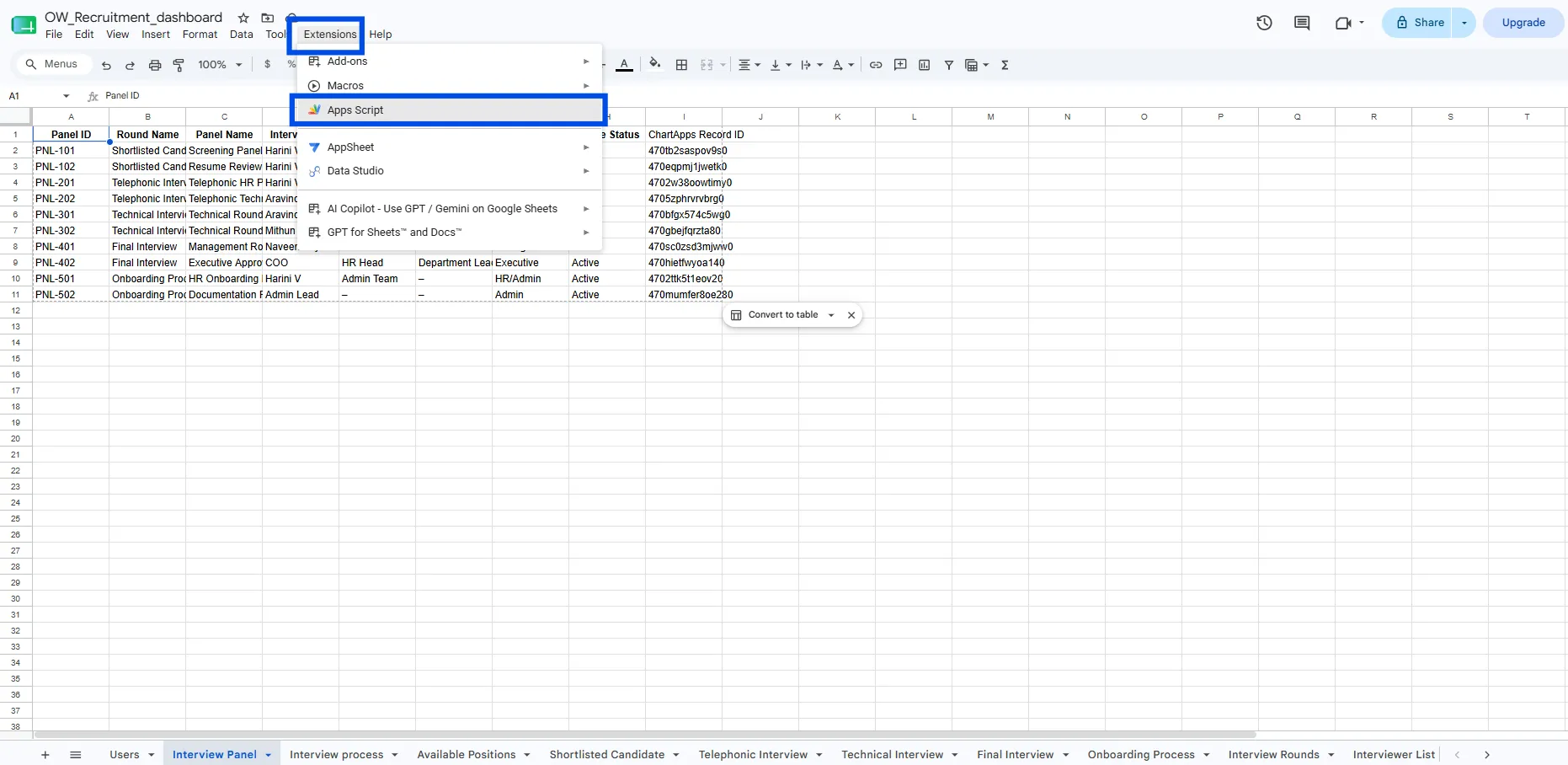
2. This brings up the Script Editor as shown below.
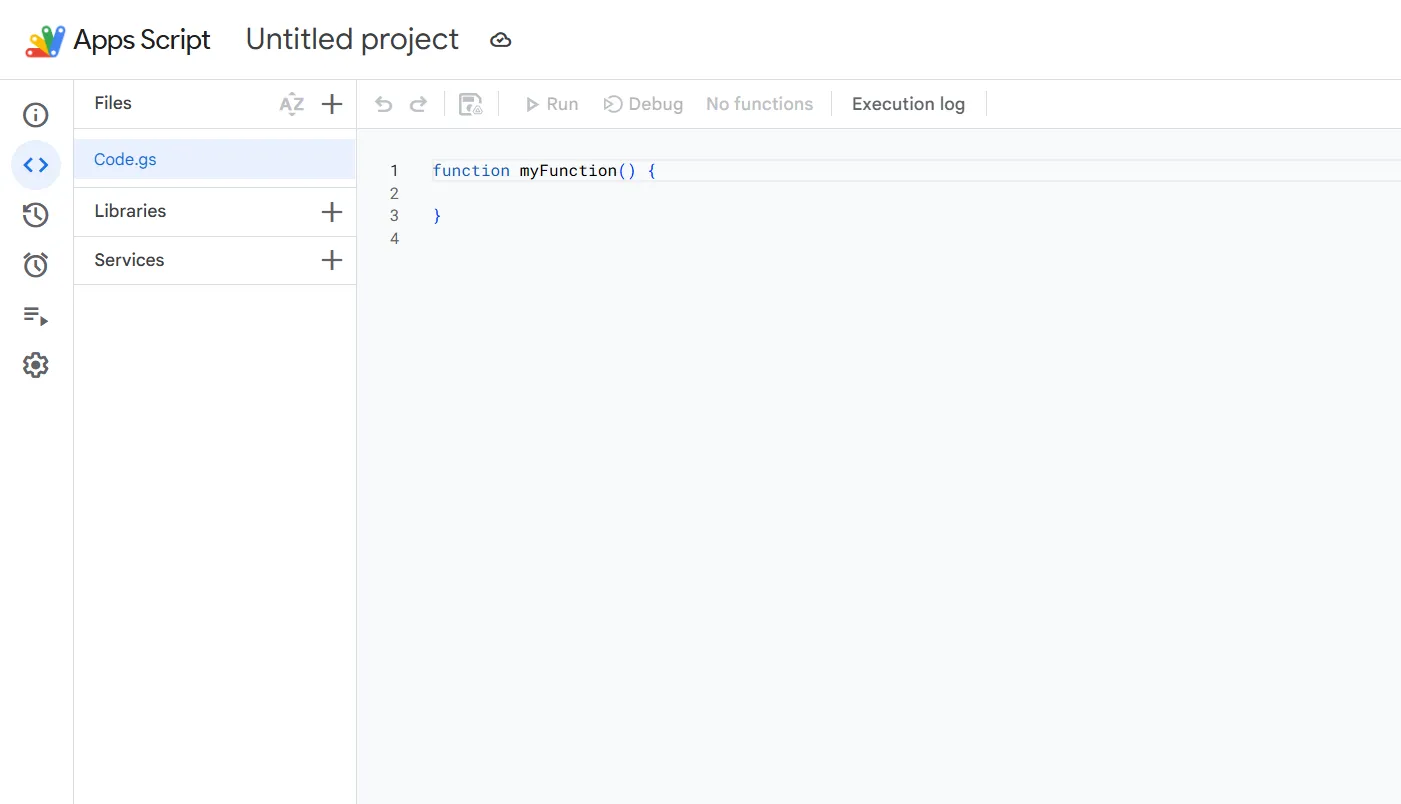
We have reached the script editor, let's code.
A step-by-step guide explaining how the finalSyncAndMerge() function is implemented in the ChartApps Recruitment Dashboard to automate the interview process.
Step 1: Structuring Your Recruitment Pipeline in Google Sheets
Before automation, structure is essential.
function finalSyncAndMerge() {
var ss = SpreadsheetApp.getActiveSpreadsheet();
// 1. Define Sheets
var sourceSheet = ss.getSheetByName("Shortlisted Candidate");
var telephonicSheet = ss.getSheetByName("Telephonic Interview");
var technicalSheet = ss.getSheetByName("Technical Interview");
var finalSheet = ss.getSheetByName("Final Interview");
if (!telephonicSheet) return;
Explanation of the Function:
Here, we begin by creating a new function called finalSyncAndMerge(). Inside this function, we first access the active Google Sheet using SpreadsheetApp, which allows the script to work with the current spreadsheet.
After that, we fetch the required sheets by using the getSheetByName() function, where we pass the names of the sheets representing different interview stages such as Shortlisted Candidate, Telephonic Interview, Technical Interview, and Final Interview.
Finally, we include a basic validation check to ensure that the Telephonic Interview sheet exists before proceeding, so the automation runs smoothly without errors.
Instead of tracking everything in a single sheet, the recruitment lifecycle is broken into clear stages, each represented by a dedicated sheet:
- Shortlisted Candidate
- Telephonic Interview
- Technical Interview
- Final Interview
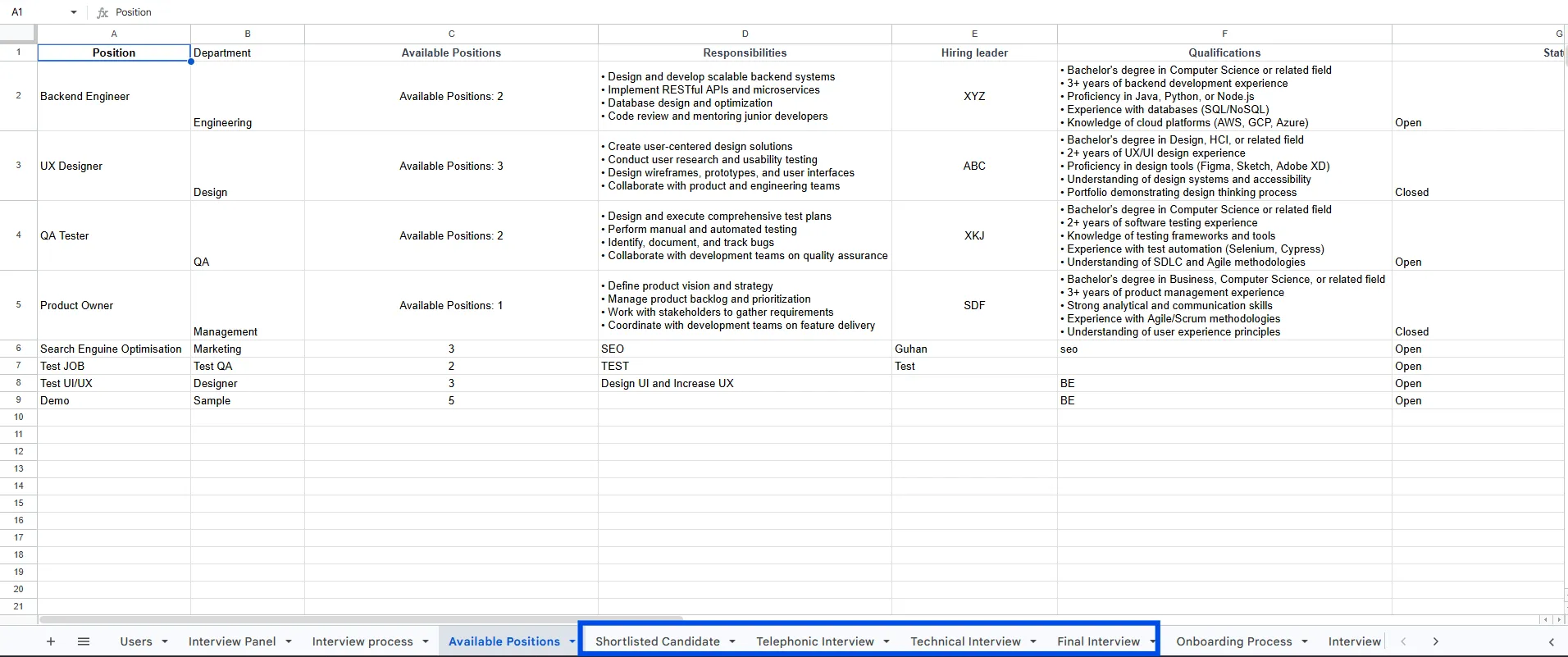
Each sheet represents one interview stage. Candidates move forward only when specific conditions are met, such as screening completion or interview selection. This stage-based structure mirrors real-world hiring workflows and makes automation reliable and predictable.
Step 2: Automating Candidate Movement with Apps Script
Manually copying candidates between sheets leads to errors and duplicated data. This is where the finalSyncAndMerge Apps Script function becomes the backbone of your recruitment workflow.
Instead of copying rows, the script:
- Reads candidate status
- Decides eligibility
- Moves or updates data automatically
- Cleans up duplicates created by concurrent edits or app submissions
This approach turns Google Sheets into a logic-driven recruitment engine instead of a static tracker.
Step 3: Sync Shortlisted Candidates into Telephonic Interview
The first automation step processes the Shortlisted Candidate sheet.
Only candidates whose screening status is marked as Completed are eligible to move forward.
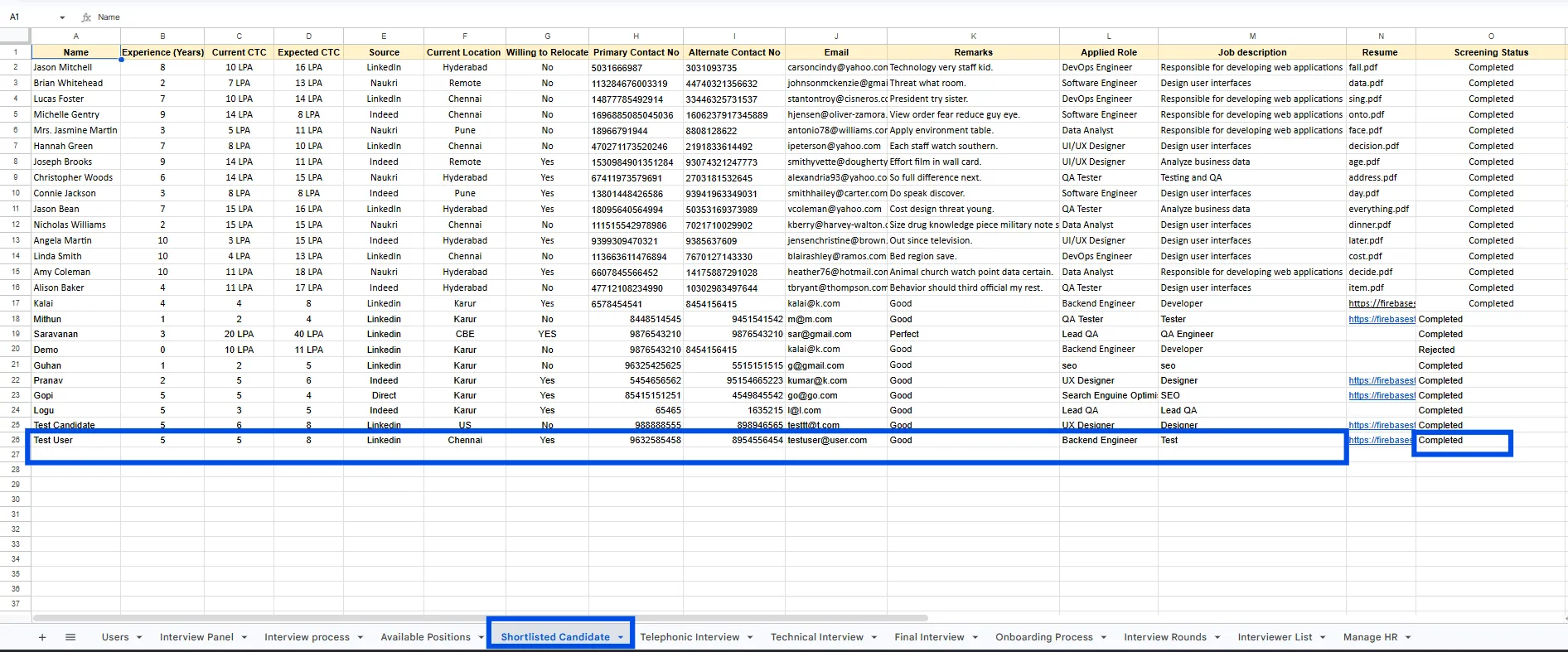
Functions used:
// ======================================================
// "SMART SYNC" SHORTLISTED -> TELEPHONIC
// ======================================================
// FIX: Checks if name exists. IF EXISTS -> Update Cols B,C,D. IF NO -> Add New.
if (sourceSheet) {
var lastSourceRow = sourceSheet.getLastRow();
// 1. Build a Map of who is ALREADY in Telephonic Sheet
var telMap = {};
var lastTelRow = telephonicSheet.getLastRow();
if (lastTelRow > 1) {
// Get all names from Column A (Index 0)
var tData = telephonicSheet.getRange(2, 1, lastTelRow - 1, 1).getValues();
for (var t = 0; t < tData.length; t++) {
var tName = String(tData[t][0]).toLowerCase().trim();
if (tName) {
telMap[tName] = t + 2; // Store actual Row Number
}
}
}
// 2. Loop through Shortlisted Candidates
if (lastSourceRow > 1) {
var sourceValues = sourceSheet.getRange(2, 1, lastSourceRow - 1, 15).getValues();
var rowsToAdd = []; // Only for brand new people
for (var i = 0; i < sourceValues.length; i++) {
var row = sourceValues[i];
// --- MAP YOUR COLUMNS FROM SOURCE SHEET (Check Indices carefully) ---
var name = String(row[0]).trim(); // Col A
var status = row[14]; // Col O
var role = row[11]; // Col L
var phone1 = row[7]; // Col H
var phone2 = row[8]; // Col I
if (status === "Completed" && name !== "") {
var cleanName = name.toLowerCase();
// --- LOGIC: UPDATE VS APPEND ---
if (telMap[cleanName]) {
// [EXISTING CANDIDATE]: The Name is found (e.g., Kalai is in Row 17 or 18)
var targetRow = telMap[cleanName];
// DIRECT UPDATE: We overwrite ONLY Columns B, C, D (Role, Phone1, Phone2)
// We do NOT touch Columns E, F, G (Interviewer info from App)
telephonicSheet.getRange(targetRow, 2, 1, 3).setValues([[role, phone1, phone2]]);
} else {
// [NEW CANDIDATE]: Name not found in Telephonic sheet
// We prep them to be added as a new row
rowsToAdd.push([name, role, phone1, phone2]);
// Update the map immediately so we don't add the same person twice in one run
telMap[cleanName] = lastTelRow + rowsToAdd.length + 1;
}
}
}
// Batch Add only the TRULY new rows
if (rowsToAdd.length > 0) {
telephonicSheet.getRange(telephonicSheet.getLastRow() + 1, 1, rowsToAdd.length, 4).setValues(rowsToAdd);
}
}
}
Explanation of this Script:
Here, we are implementing a smart synchronization process that automatically moves candidates from the Shortlisted Candidate sheet to the Telephonic Interview sheet in an intelligent way. The logic first checks whether the source sheet exists and then reads all existing candidate names from the Telephonic Interview sheet to understand who is already present. This list is stored internally so the system can avoid duplicates.
Next, the script goes through each shortlisted candidate and checks their status; only candidates whose screening status is marked as Completed are considered.
If a candidate already exists in the Telephonic Interview sheet, the system updates only the required details such as role and phone numbers, without disturbing interviewer-related data that may already be filled in. If the candidate does not exist, the system prepares their details and adds them as a new entry.
Finally, all new candidates are added in one go, ensuring the process is fast, clean, and error-free while keeping the recruitment data accurate and up to date.
What the script does:
- Checks if the candidate already exists in the Telephonic Interview sheet
- Updates only basic details like role and phone number if the candidate exists
- Preserves interviewer-entered data such as feedback and interview status
- Adds new candidates only when they do not already exist
- This script automatically update only the information of the candidate such as “Name”, “Applied Role”, “Primary Contact No”, “Alternate Contact No” from the “Shortlisted Candidate” sheet to “Telephonic Interview” sheet
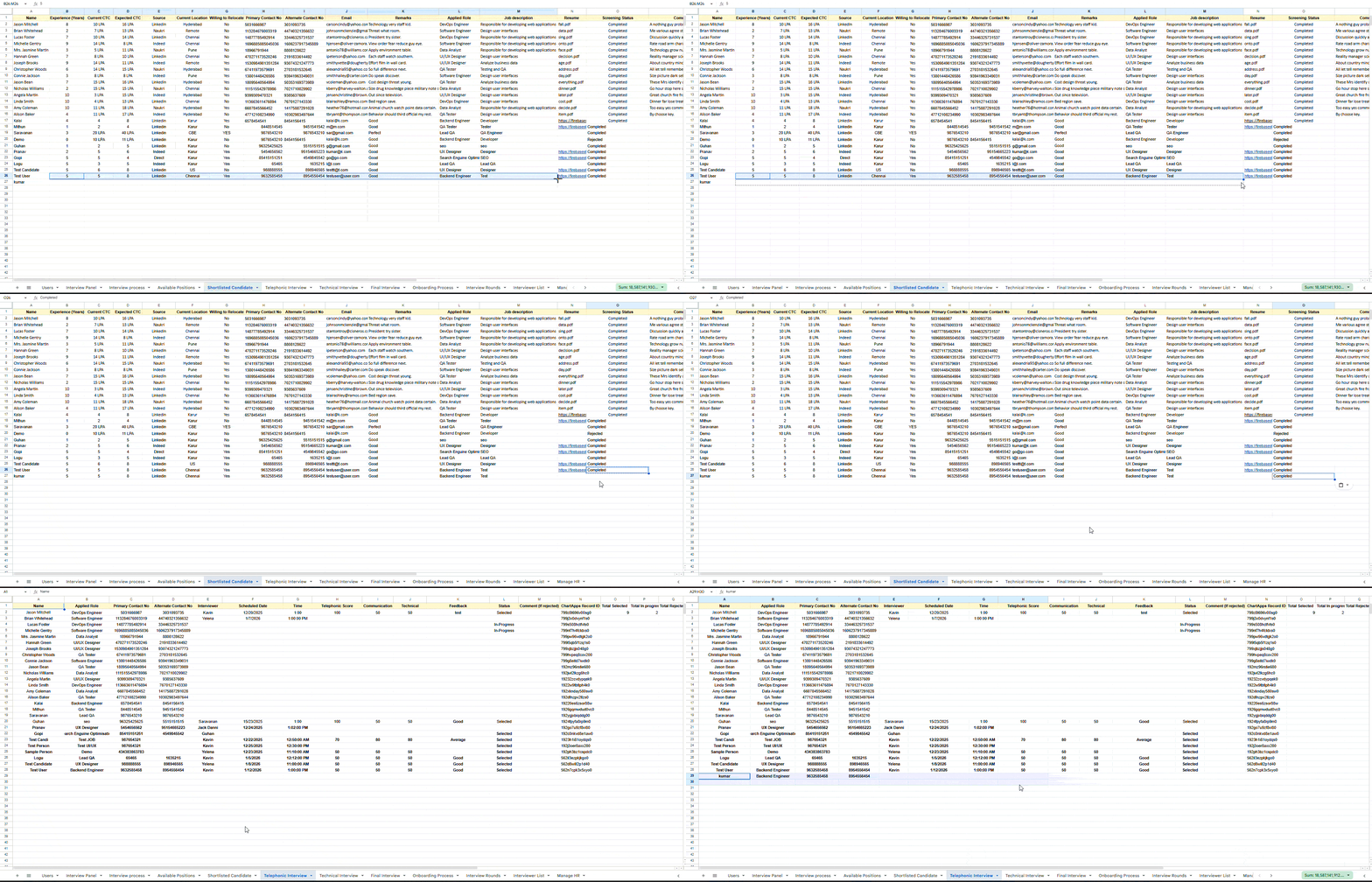
This ensures the Telephonic Interview sheet always stays updated without overwriting interviewer input.
Step 4: Promoting Candidates from Telephonic to Technical Interview
Candidates selected in the Telephonic Interview round are automatically moved to the Technical Interview sheet.
Functions used:
// ======================================================
// TELEPHONIC -> TECHNICAL (Standard)
// ======================================================
if (technicalSheet) {
var freshLastRow = telephonicSheet.getLastRow();
if (freshLastRow > 1) {
var telData = telephonicSheet.getRange(2, 1, freshLastRow - 1, 15).getValues();
var lastTechRow = technicalSheet.getLastRow();
var existingTechNames = [];
if (lastTechRow > 1) {
var rawTechNames = technicalSheet.getRange(2, 1, lastTechRow - 1, 1).getValues();
existingTechNames = rawTechNames.map(function(r) { return String(r[0]).toLowerCase().trim(); });
}
var techRowsToAdd = [];
for (var i = 0; i < telData.length; i++) {
var row = telData[i];
var tName = String(row[0]).trim();
var tStatus = row[11]; // Col L Status
if (tStatus === "Selected" && tName !== "" && existingTechNames.indexOf(tName.toLowerCase()) === -1) {
// Columns: Name, Role(B), Feedback(K), NextRoundDate(N), Source(O)
techRowsToAdd.push([tName, row[1], row[10], row[13], row[14]]);
existingTechNames.push(tName.toLowerCase());
}
}
if (techRowsToAdd.length > 0) {
technicalSheet.getRange(lastTechRow + 1, 1, techRowsToAdd.length, 5).setValues(techRowsToAdd);
}
}
}
Explanation of this Script:
Here, the script handles the next stage of the hiring process, where candidates move from the Telephonic Interview sheet to the Technical Interview sheet.
First, it checks whether the Technical Interview sheet is available before continuing. Then, it reads all candidate records from the Telephonic Interview sheet and collects the names of candidates who are already present in the Technical Interview sheet to avoid duplicate entries.
The script goes through each telephonic interview record and looks for candidates whose status is marked as Selected. If a candidate meets this condition and does not already exist in the Technical Interview sheet, their key details such as name, role, feedback, next round date, and source are prepared and added as a new entry.
Finally, all eligible candidates are inserted into the Technical Interview sheet in one step, ensuring a smooth and accurate transition between interview stages without manual intervention.
What the script does:
- Checks the interview status for “Selected”
- Ensures the candidate does not already exist in the Technical Interview sheet
- Transfers only essential fields such as Name, Applied Role, Telephonic interview Feedback, and next-round date
- Uses batch operations for performance
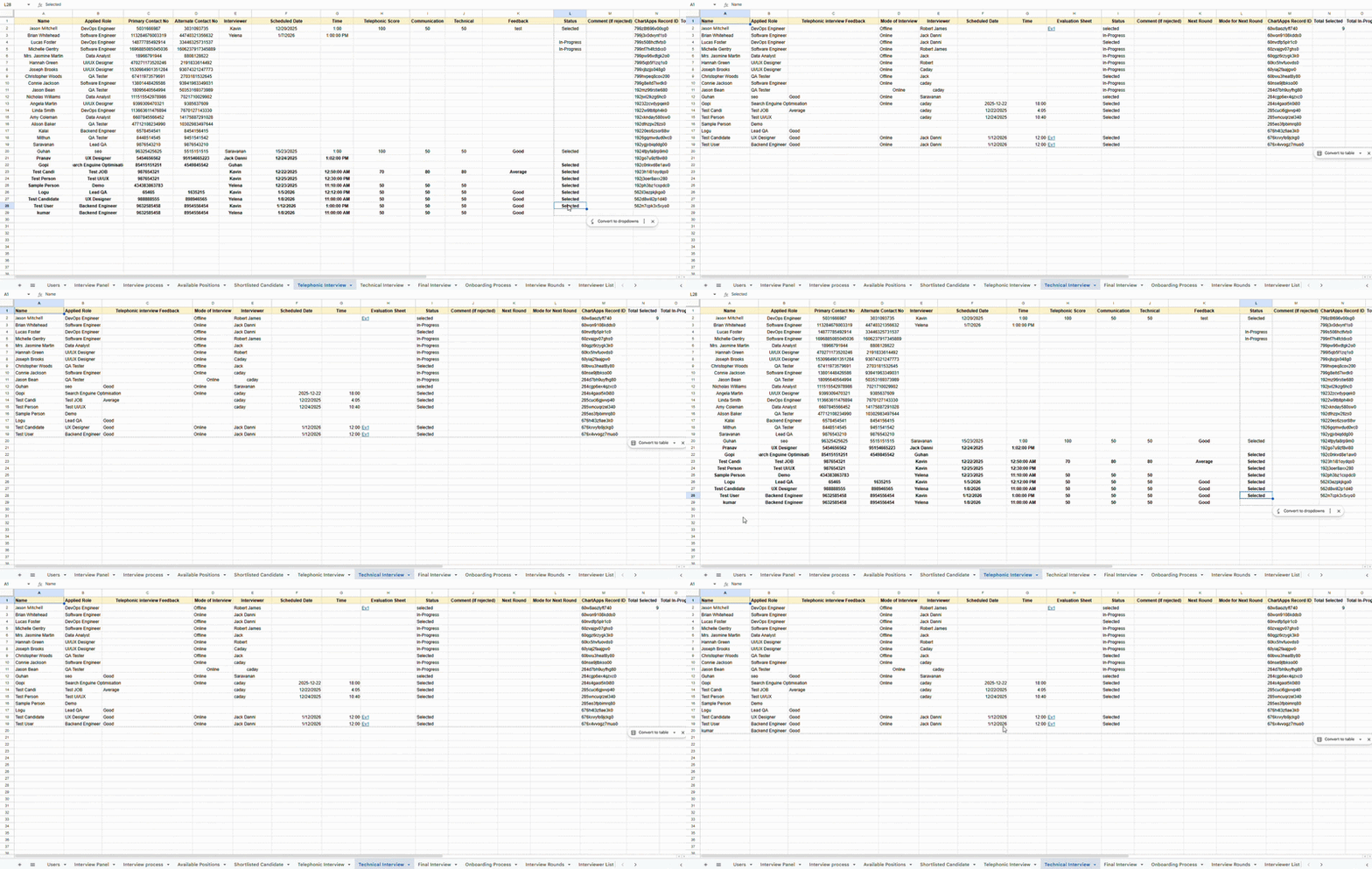
This guarantees that only qualified candidates progress to technical evaluation.
Step 5: Moving Candidates into the Final Interview Stage
Candidates selected in the Technical Interview round are promoted to the Final Interview sheet.
Functions used:
// ======================================================
// PART 5: TECHNICAL -> FINAL (Fixed & Added Role)
// ======================================================
if (technicalSheet && finalSheet) {
var freshLastTechRow = technicalSheet.getLastRow();
if (freshLastTechRow > 1) {
// 1. Get Data: Grabbing 15 cols to be safe to find the Status column
var techData = technicalSheet.getRange(2, 1, freshLastTechRow - 1, 15).getValues();
var lastFinalRow = finalSheet.getLastRow();
// 2. Map existing people in Final Interview to avoid duplicates
var existingFinalNames = [];
if (lastFinalRow > 1) {
var rawFinalNames = finalSheet.getRange(2, 1, lastFinalRow - 1, 1).getValues();
existingFinalNames = rawFinalNames.map(function(r) { return String(r[0]).toLowerCase().trim(); });
}
var finalRowsToAdd = [];
for (var i = 0; i < techData.length; i++) {
var row = techData[i];
var name = String(row[0]).trim();
var role = row[1]; // Col B from Technical Sheet (Applied Role)
// --- CRITICAL CHECK ---
// row[8] is Column "I". If your Status is in Column J, change this to row[9].
var status = String(row[8] || "").toLowerCase().trim();
// 3. Logic: If Selected + Name exists + Not already in Final sheet
if (status === "selected" && name !== "" && existingFinalNames.indexOf(name.toLowerCase()) === -1) {
// We push Name AND Role now
finalRowsToAdd.push([name, role]);
existingFinalNames.push(name.toLowerCase());
}
}
// 4. Batch Write: Set Values for 2 Columns (Name, Role)
if (finalRowsToAdd.length > 0) {
// .getRange(Row, Col, NumRows, NumCols) -> NumCols is now 2
finalSheet.getRange(lastFinalRow + 1, 1, finalRowsToAdd.length, 2).setValues(finalRowsToAdd);
}
}
}
Explanation of this Script:
Here, the script manages the final transition in the hiring workflow, moving candidates from the Technical Interview sheet to the Final Interview sheet.
It first checks whether both the Technical and Final Interview sheets are available before proceeding. Then, it reads all candidate data from the Technical Interview sheet and gathers the names of candidates who are already present in the Final Interview sheet to avoid duplicates.
The script goes through each technical interview record and checks whether the candidate’s status is marked as Selected. If the candidate is selected, has a valid name, and does not already exist in the Final Interview sheet, their name along with the applied role is prepared and added.
Finally, all eligible candidates are inserted into the Final Interview sheet in one batch, ensuring a clean, accurate, and fully automated handoff into the final stage of the recruitment process.
What the script does:
- Status checks are performed in a case-insensitive manner
- Candidate role is preserved
- Duplicate final entries are prevented
- Only minimal, decision-ready data is transferred
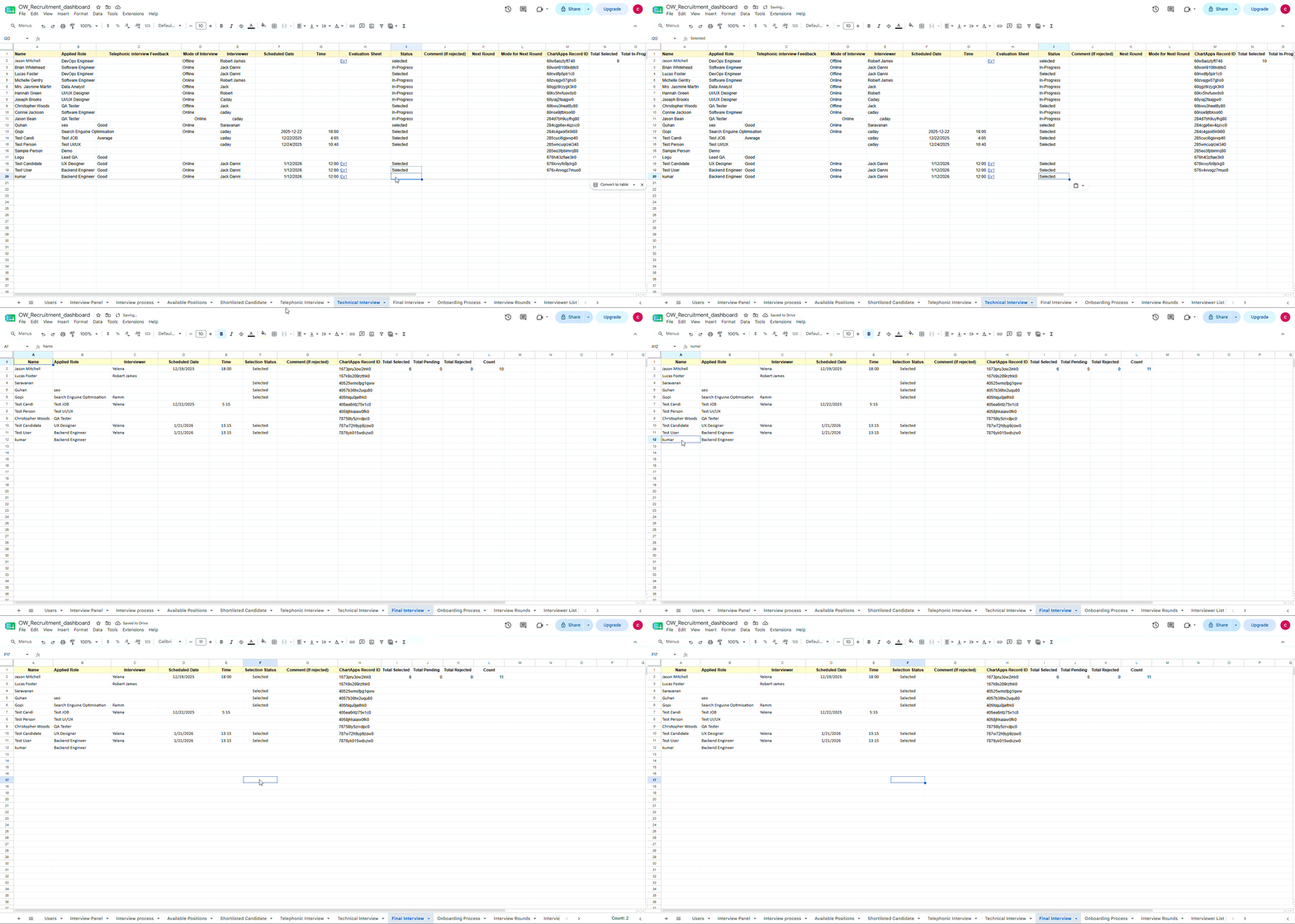
The Final Interview sheet remains clean, focused, and suitable for leadership review.
Step 5: Moving Candidates into the Onboarding Process Stage
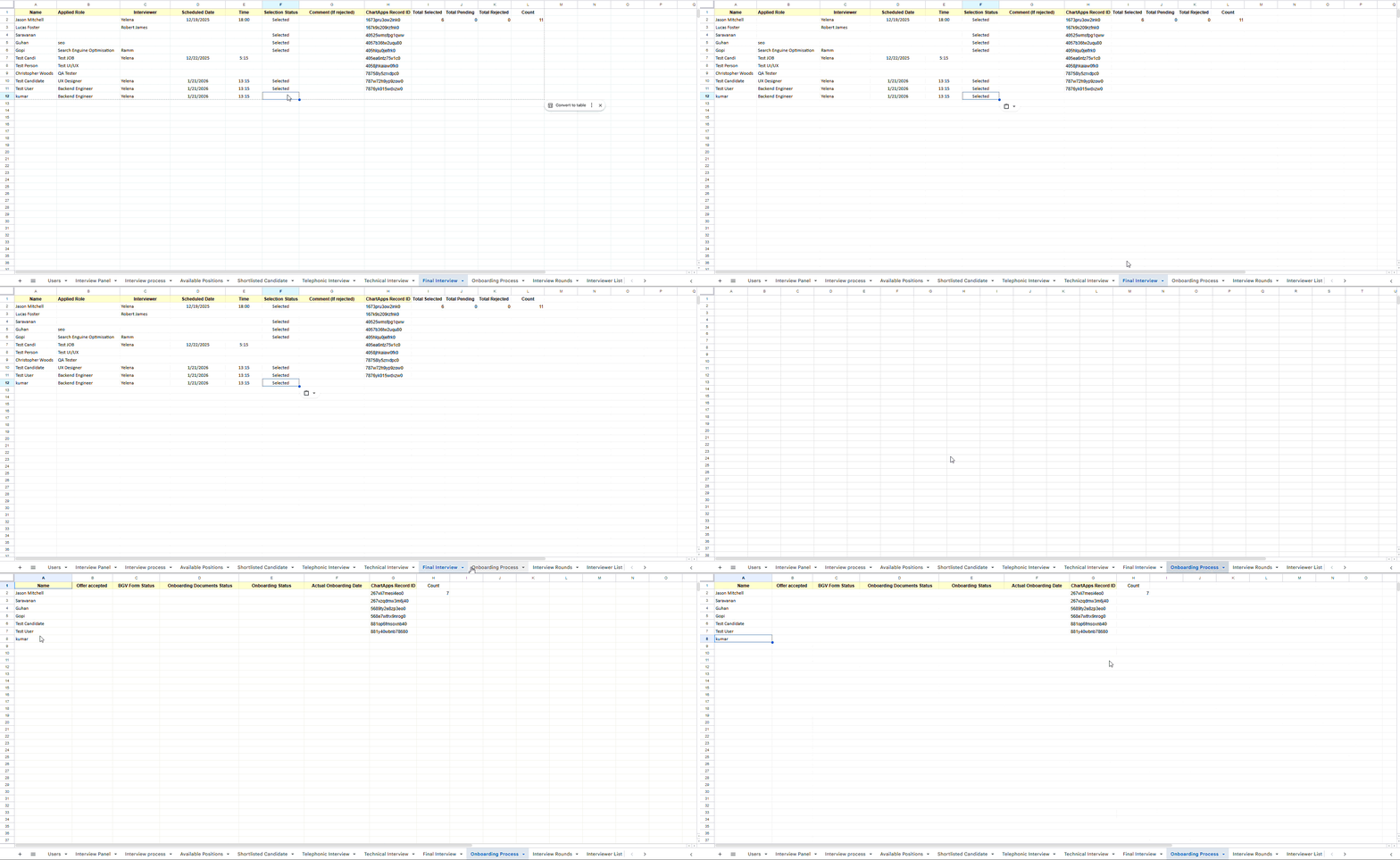
Once a candidate is marked as ‘Selected’ in the Final Interview, their name is automatically fetched into the ‘Onboarding Process’. This is achieved using the formula:
=FILTER('Final Interview'!A2:A, EXACT(TRIM('Final Interview'!F2:F), "Selected"))
What does this formula Do?
It returns a list of values from column A (starting from row 2) of the “Final Interview” sheet only for candidates whose status in column F is exactly “Selected”.
Execute the Apps Script:
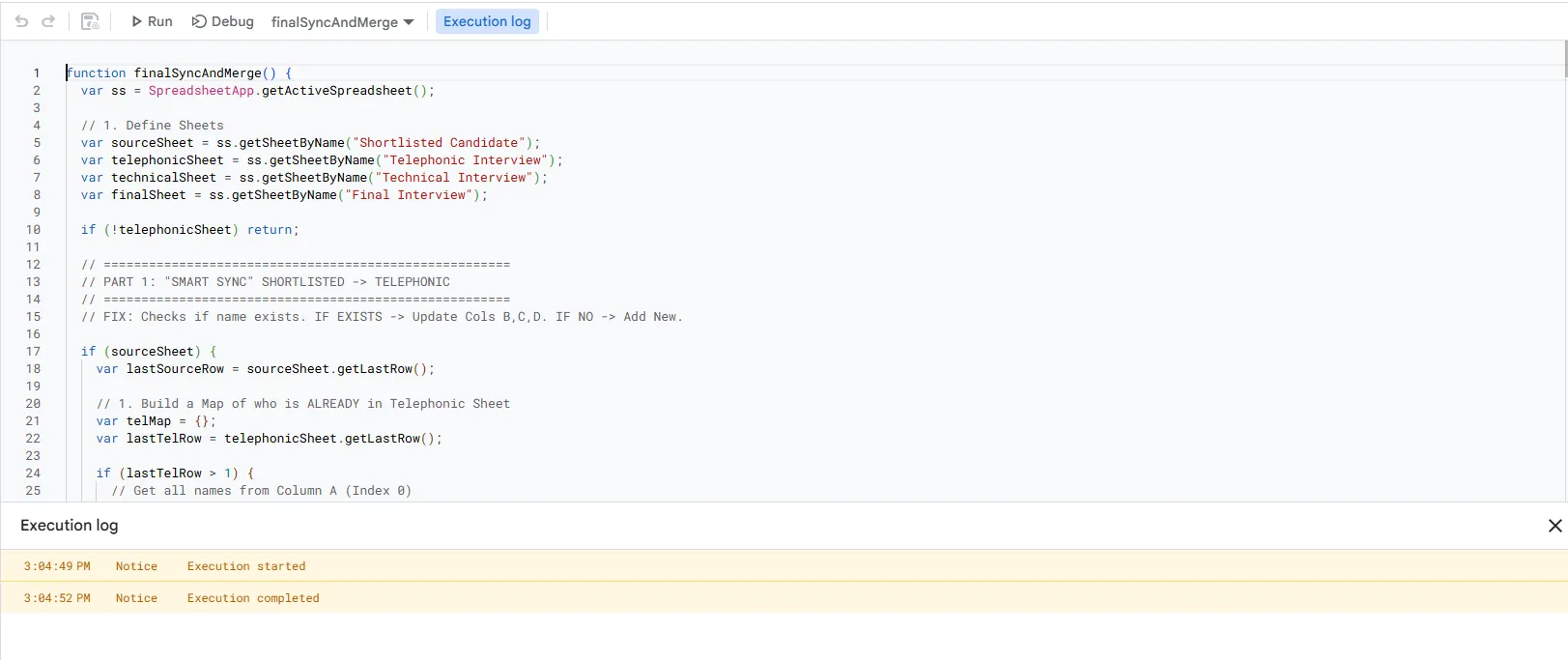
After completing the code, when you run the Apps Script, no issues are detected in the execution log. This means our Apps Script code is working perfectly.
Turning Google Sheets into a Recruitment Dashboard with ChartApps
Once your recruitment workflow is structured and automated in Google Sheets, you can connect it directly to ChartApps.
With ChartApps, HR teams can:
- View job openings and candidate counts in real time
- Track how many candidates are in each interview round
- Identify bottlenecks in the hiring pipeline
- Provide role-based dashboards for HR and interviewers
Instead of sharing spreadsheets, stakeholders access a clean, browser-based recruitment dashboard from any device.
Key Takeaways at a Glance
- Recruitment automation using Google Sheets eliminates manual copy-paste work and reduces human errors across interview rounds
- A well-structured recruitment tracker can function as a lightweight yet reliable Google Sheets applicant tracking system
- The custom Apps Script function finalSyncAndMerge() ensures safe syncing and merging of candidate data without creating duplicates
- Status-based logic allows candidates to move forward only when they meet defined criteria, keeping the hiring process consistent and controlled
- Interviewer feedback and manual inputs remain protected, even when automation runs multiple times
- Automated workflows make Google Sheets scalable for growing hiring needs and multi-role recruitment
- Connecting automated Google Sheets data to ChartApps transforms raw spreadsheet data into real-time, role-based recruitment dashboards
- HR teams gain instant visibility into candidate flow, interview progress, and hiring bottlenecks without sharing spreadsheets
If you are still managing interviews manually, now is the right time to upgrade your process. Start by structuring your recruitment pipeline in Google Sheets and implementing finalSyncAndMerge() to automate candidate movement across interview stages.
To take it a step further, connect your Google Sheets to ChartApps and Build your multipage recruitment dashboard. This gives HR teams, interviewers, and leadership a single source of truth for faster decisions, better visibility, and scalable hiring operations.
Explore ChartApps and start building a more organized, automated, and scalable applications today.